Study notes, syllabi and books in PDF on your iPad or iPhone without losing ideas across hundreds of pages. File every highlight under a topic or question and take it to Word already sorted, with its page number and your notes.
For iPad and iPhone (iOS/iPadOS 17 or later) · Free, no accounts, no ads, no data collected · In Spanish, Catalan and English
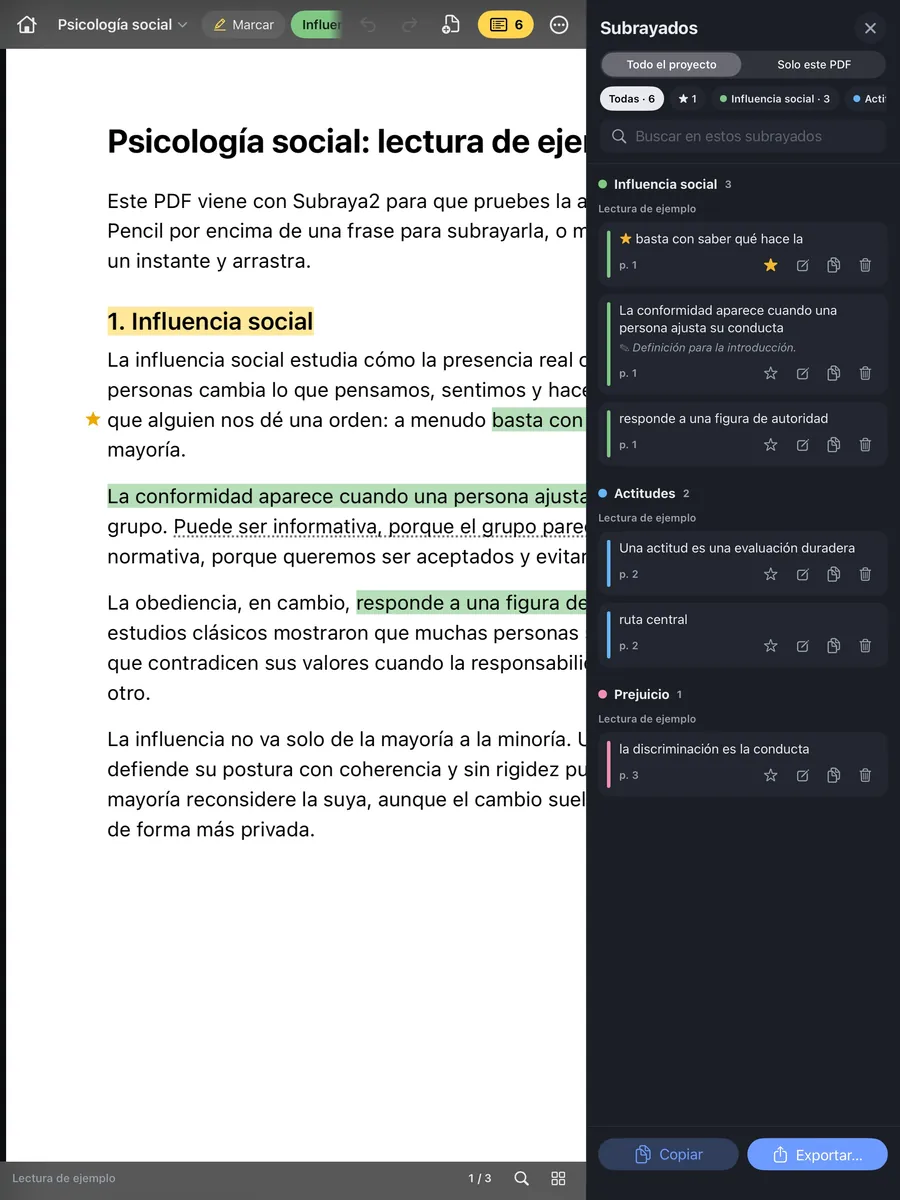
Made so you read once and find every idea in its place when it’s time to review or write.
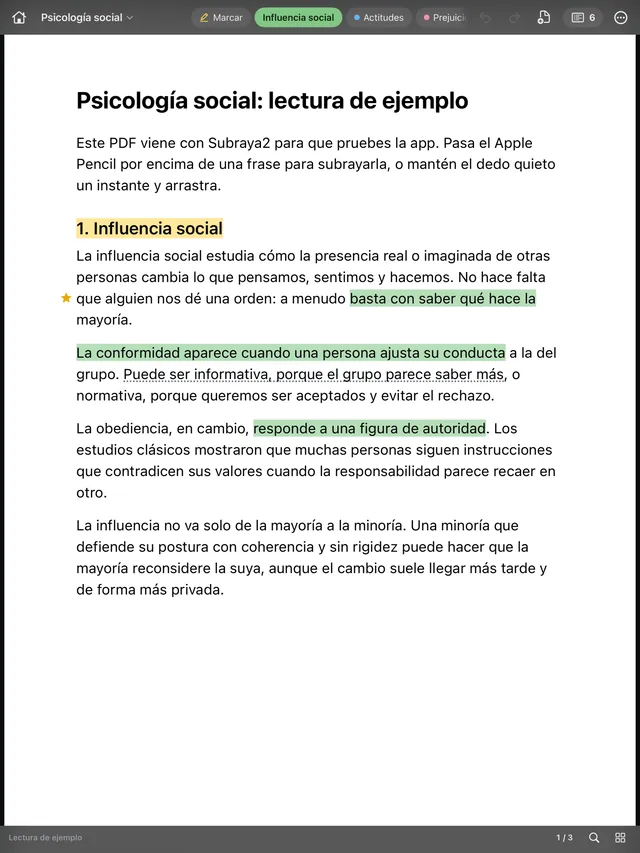
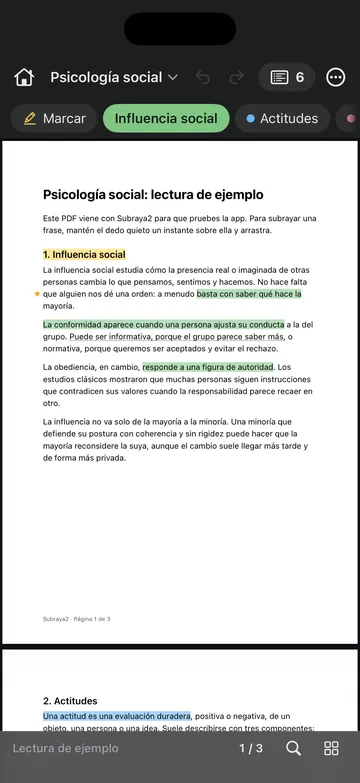
Run the Apple Pencil over a sentence, or hold your finger still for a moment and drag: the highlight snaps to whole words. Choose marker or underline, fine-tune it with the handles and use “Mark” in yellow if you don’t want to file it yet. Made a mistake? Undo.
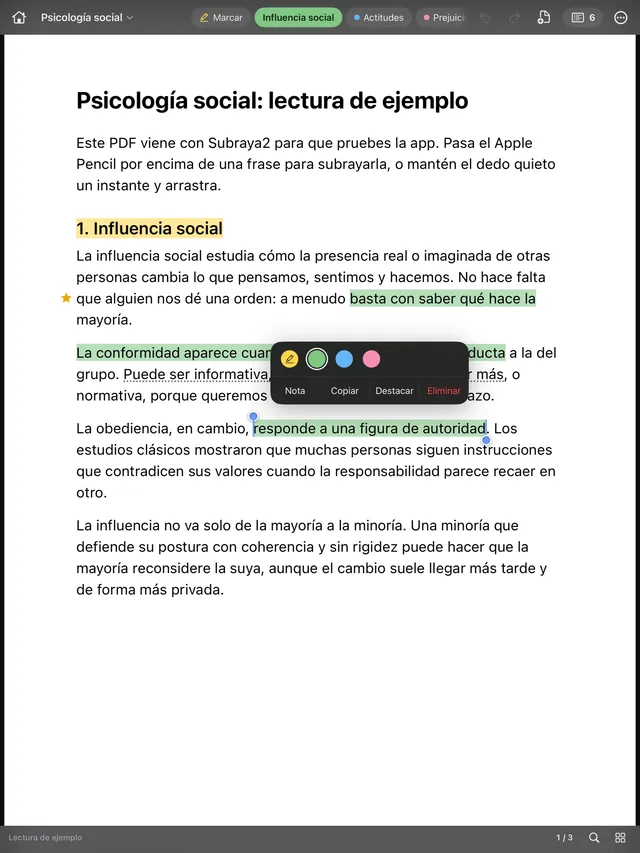
Create colored tags for each question, chapter or topic in your project. Tap a highlight to change its tag, add a note or put a star in the margin if it’s a must.
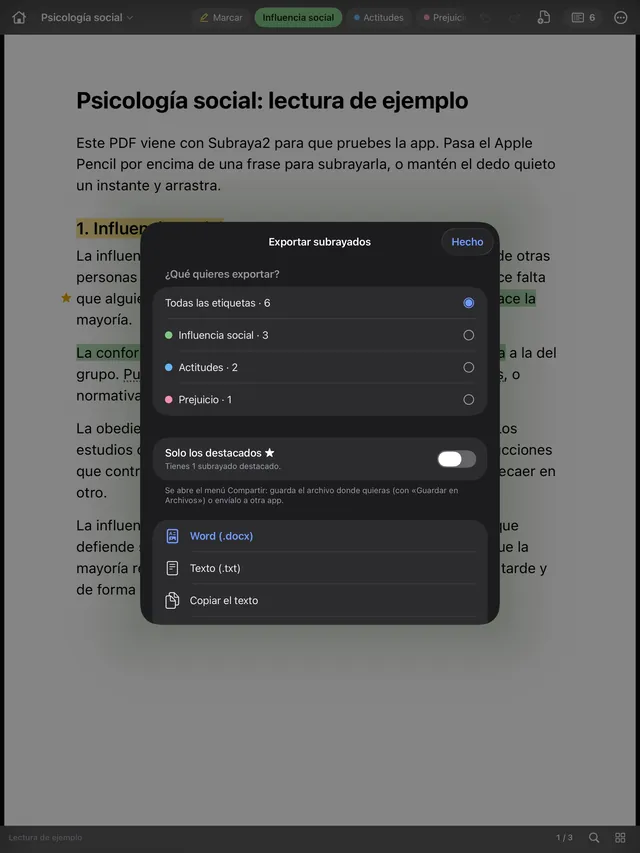
See your highlights by tag or by page in the panel and export them to Word (.docx) already grouped, with their page and your notes. Or to plain text, only the starred ones, or as a highlighted PDF.
Apply your color code to laws and long topics, star what can’t be missed, search all your highlights and export only the starred lines to Word for quick review rounds.
Create a tag for each question in your assignment or exam while you read the course PDFs. When you finish reading, your outline is already sorted by question in Word.
Group quotes from different papers under the sections of your outline, with the page and your notes on every highlight, so you can write with confidence.
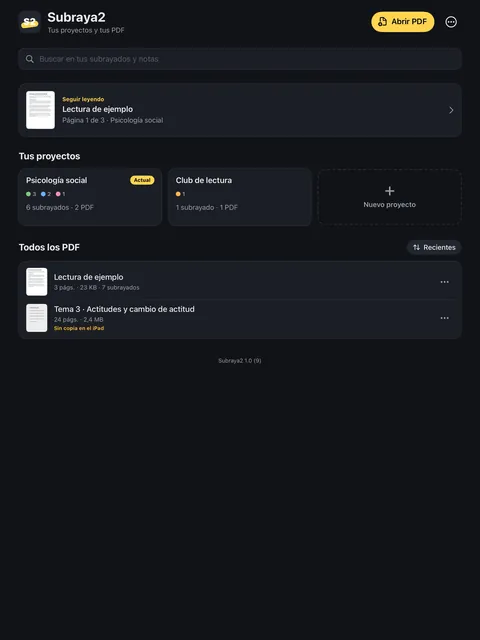
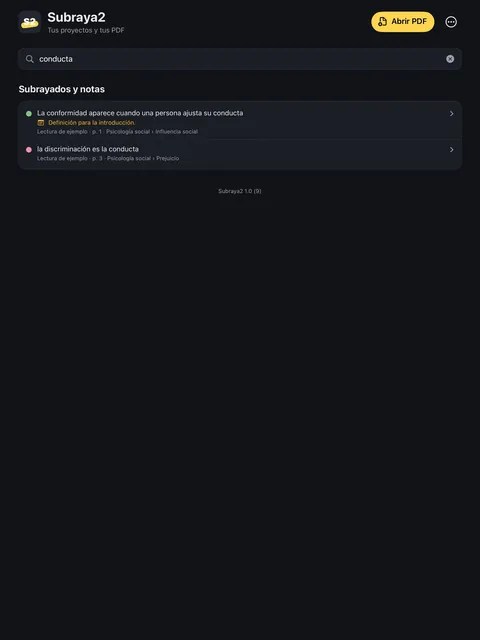
Organize your PDFs into projects (a course, an exam or a paper) and search for any word inside the PDF or across all your highlights and notes.
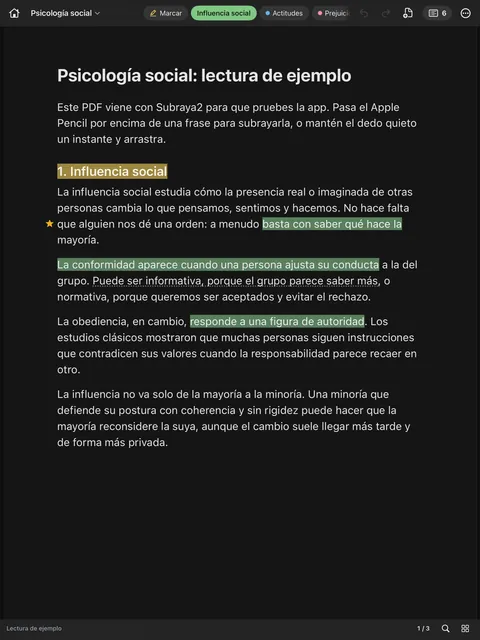
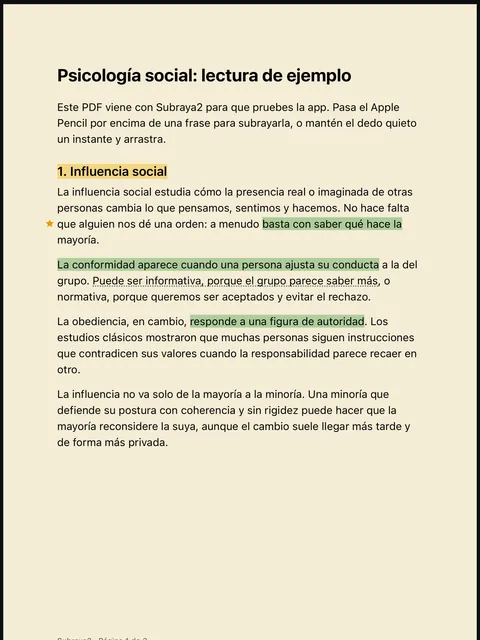
Switch between white, sepia and night paper for long sessions, and hide the clock and battery if you want to read without distractions.
Open them from “Files” (iCloud Drive, Google Drive, Dropbox…) or from your personal OneDrive. Your highlights can also be saved inside the PDF itself, in a standard format other readers show, and your backup can go to your OneDrive on its own.
On iPad, with Apple Pencil or your finger; on iPhone, with your finger. All in Spanish, Catalan or English, following your device’s language.
A personal project, no company behind it. Subraya2 grew out of a real student need: highlighting notes on the iPad and later finding every idea sorted by question, not lost across hundreds of pages.
Real privacy. The app has no sign-up or email, no ads or trackers, and collects no data. This website only counts visits, with no cookies and without knowing who you are. All the details are in the privacy policy.
You can use either. With Apple Pencil, just drag across the sentence; with your finger, press and hold briefly on a word and drag. In both cases the highlight snaps cleanly to words, can be adjusted with handles, and supports highlighter or underline styles.
It does not convert the whole document to Word: it exports your highlights and notes into a Word document already sorted by tag, with the page number for each excerpt. You can also export to plain text, export only starred ★ highlights, or share the highlighted PDF.
Direct OneDrive integration inside the app works only with personal Microsoft accounts. If your PDFs are in a university or work OneDrive, open them through the Files app (just like iCloud Drive, Google Drive, or Dropbox): with “Save to the original” enabled, Subraya2 writes your highlights into that same file and the OneDrive app uploads it like any other change. If the folder is read-only, the app warns you.
Yes: with “Save to the original” enabled, your highlights and stars are saved inside the original PDF file, so they appear on your computer and in other compatible PDF readers. Notes are not embedded in the PDF—they stay in the app and are included when you export to Word or plain text.
No. You open the app and start highlighting right away—no email, no password, and no registration.
More questions? See the full help or write to subraya2app@gmail.com.
Free, no accounts, no ads. For iPad and iPhone (iOS/iPadOS 17 or later).
Coming soon to the App Store Subraya2